Manual Step-by-Step Tutorial: Making a Uptown Funk AI Video
Last updated:
If you want to understand how the Uptown Funk AI pipeline works under the hood or replicate the effect manually using foundation video models and APIs, this step-by-step tutorial walks through asset preparation, slot mapping, prompt engineering and lossless audio muxing.
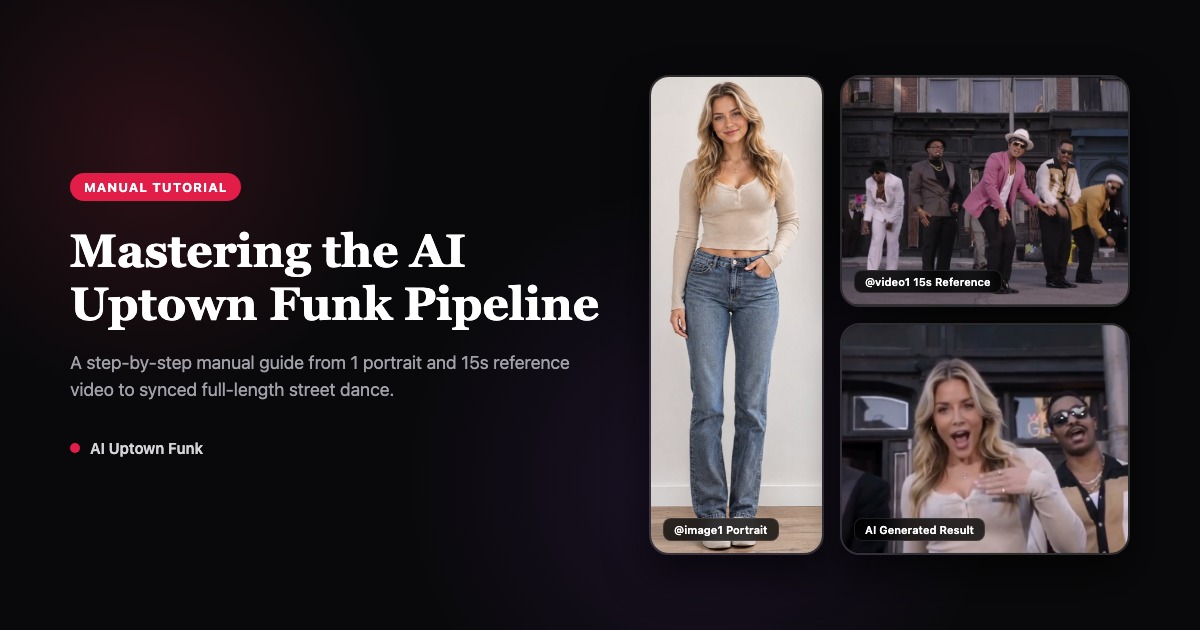
What You Need: Input Assets & Specs
Recreating a high-quality Uptown Funk AI dance video manually relies on three core assets: the subject portrait, the choreography reference video, and the high-fidelity soundtrack.
1. Subject Portrait (@image1): Prepare an evenly lit, front-facing full-body photo (such as the beige knit long-sleeve crop top paired with denim jeans and white sneakers in our sample). A full-body photo allows multimodal models to extract facial features, hairstyle, body proportions and outfit style at once, preventing hallucinated clothing.
2. Choreography & Camera Reference (@video1): Clip an exact 15-second, 16:9 reference video of the classic street performance (1080p or 720p at 24fps). Its sole purpose is to provide beat timing, spatial movement, low crouches and camera push-in timing, completely separating motion from identities.
3. Final Video Deliverable: Bruno Mars is seamlessly replaced by the target subject, retaining their everyday outfit and hairstyle, dancing in lockstep with the supporting crew, finished with the original AAC stereo soundtrack.
Core Pipeline & Model Selection
In Reference-to-Video architectures, foundation models such as ByteDance Seedance 2.0 Fast, Seedance 2.5 or Kling 4.0 use multimodal cross-attention to project visual identity traits from still images onto dynamic motion frames.
Why must audio generation be disabled (generate_audio: false)? Current video foundation models often generate synthetic audio with noticeable background hiss, pitch artifacts, and slight sync drifts against fast choreography. Best engineering practice is to generate a silent video first, then remux the original reference soundtrack during post-processing.
Available tiers are Seedance 2.0 · 720p: 99 credits; Seedance 2.0 Fast · 480p: 69 credits; Seedance 2.0 · 1080p: 149 credits; Seedance 2.5 · 720p: 199 credits; Kling 4.0 · 720p: 149 credits. Keep the same portraits and reference when comparing results; resolution and model choice do not guarantee facial fidelity.
Step 1: Platform Setup & Slot Assignment
In any platform supporting reference-guided video generation (such as Jimeng, Kling AI, or Kie.ai / SeeAPI consoles):
1. Select Mode: Choose Reference-to-Video rather than single Image-to-Video (standard image-to-video cannot preserve complex 15-second multi-shot choreography).
2. Map Slots: Upload the full-body portrait into Image Slot 1 (referenced as @image1 in prompts), and upload the 15-second dance reference into Video Slot 1 (referenced as @video1).
3. Set Parameters: Set aspect ratio to 16:9 widescreen, duration to exactly 15 seconds, resolution to 720p or 1080p, and toggle audio generation off.
Step 2: Prompt Engineering & Quality Constraints
The prompt must establish strict identity mapping, preserve personal attire, strip reference celebrity likeness, and enforce anatomical quality. Use the following verified prompt:
@image1 is the center lead; keep identity and position fixed. @video1 provides choreography and camera timing, not identities. Keep each supplied person in their own everyday outfit. Sunny retro street with brick storefronts and striped awnings. Follow the reference dance and shot sequence. Keep faces distinct and movements natural. Keep feet visibly grounded, 5 fingers per hand, no distorted hands or merged limbs. No role swap, no face blending. No subtitles. Generate no audio.
Prompt breakdown: @image1 is the center lead anchors the character in center stage across all cuts; @video1 provides choreography, not identities prevents the original celebrity face from leaking into the output; Keep feet visibly grounded, 5 fingers per hand curbs foot sliding and limb melting; No role swap prevents face swaps during shot transitions.
Step 3: Lossless Audio Muxing with FFmpeg
Once the generation task is complete, download the silent MP4 render (e.g. saved as generated-silent.mp4). The final step is restoring the original 15-second high-fidelity audio track.
Open your terminal and run this single FFmpeg command:
ffmpeg -i generated-silent.mp4 -i uptown-funk-original-15s-1080p.mp4 -c:v copy -c:a aac -map 0:v:0 -map 1:a:0 -shortest -y uptown-funk-final.mp4
Command breakdown: -c:v copy transfers the video stream directly without re-encoding, finishing in under a second with zero visual loss; -map 1:a:0 extracts the pristine AAC stereo audio stream from the original reference video; -shortest guarantees perfect timestamp alignment. The output uptown-funk-final.mp4 is ready to publish.
Troubleshooting & Multi-Person Scaling
1. Prevent Face Drift: Use evenly lit, high-resolution front-facing portraits. Avoid extreme side lighting, heavy filters, or sunglasses so the model can reliably track facial keypoints.
2. Scale to 2–5 Dancers: To create a full crew video with friends or teammates, assign @image2 to the far-left dancer, @image3 to far-right, and @image4/@image5 to inner supporting spots, mirroring the mapping in your prompt.
3. Automated Generation: If you prefer not to configure API payloads, setup local environments, or run terminal commands, you can generate your dance directly on AI Uptown Funk, where prompt assembly, provider scheduling, and audio sync are handled automatically.
Your crew. The Uptown Funk routine.
Create my crew video